
Supportive, Professional, Client-Focused Service
Complete Figma Tutorial for Beginners: A Step-by-Step Guide
11 March 2026Figma Tutorials
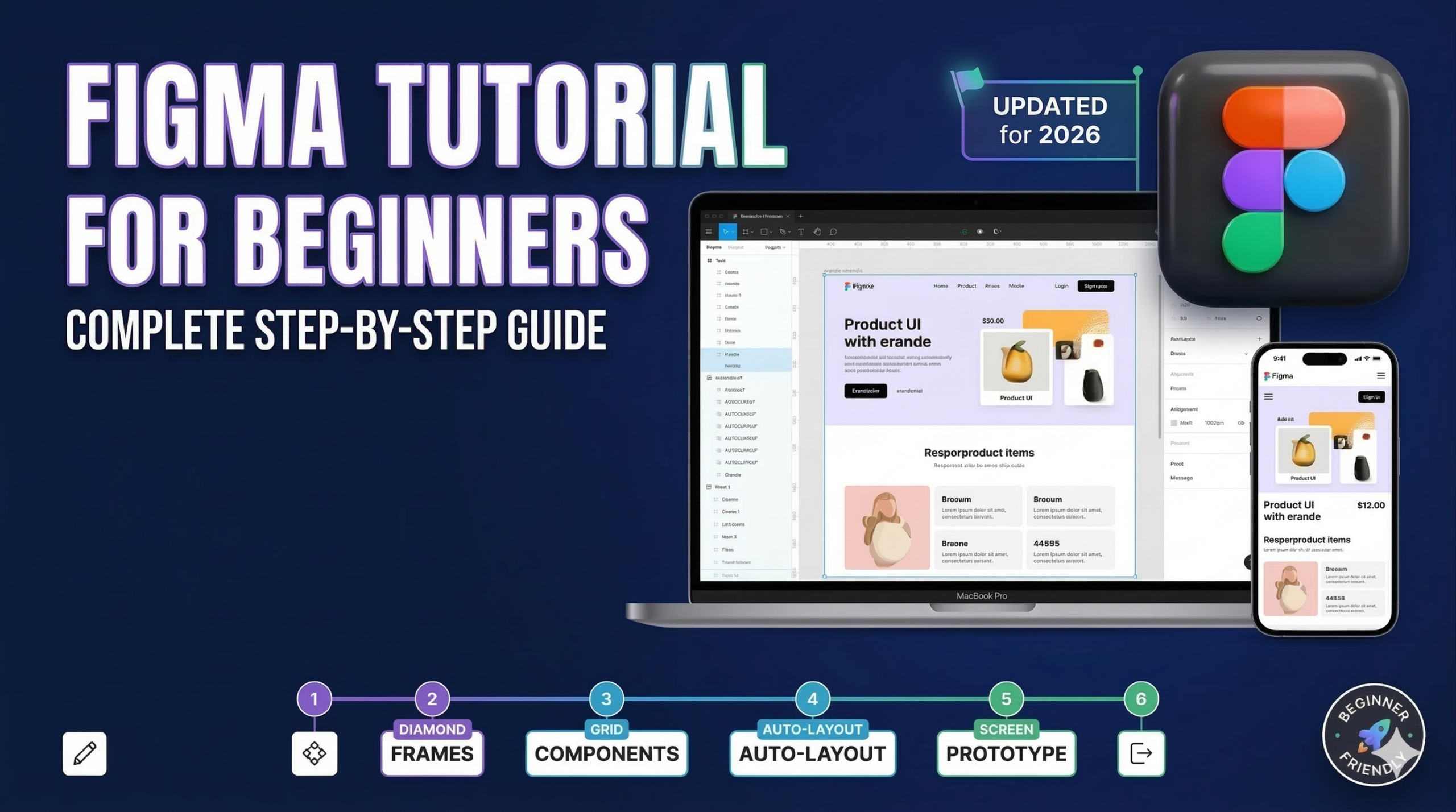
Welcome to this comprehensive Figma tutorial for beginners. If you are here, it is likely because you want to design modern websites, mobile apps, or some kind of interactive digital graphics. Fortunately, you have come to the right place. Figma is the undisputed industry standard for UI/UX design. Therefore, learning how to navigate its interface efficiently is an essential step for any aspiring designer. Throughout this guide, we will walk you through the core tools, from setting up your first canvas to creating a fully interactive prototype.
In addition, we will cover practical examples and common mistakes so you can avoid the typical pitfalls. Consequently, by the end of this post, you will be equipped to bring your creative ideas to life. Let’s not waste any time and dive straight into the platform.
Getting Started with this Figma Tutorial for Beginners
First and foremost, go to Figma.com and sign up for a free account. You can absolutely start designing right away in your web browser; however, it is highly recommended to download the desktop app for better performance. Specifically, the desktop version allows access to local fonts and provides a more seamless experience without browser tab clutter.
Once you are logged in, click on “New Design File.” You will immediately notice a light gray area in the middle of your screen. This is your canvas, and it is where all your beautiful work is going to appear. At the bottom (or top depending on your UI layout preferences), you have got a toolbar that houses all the essential instruments to move things around.
1. Setting Up Your Canvas and Frames
In Figma, a “Frame” is essentially your artboard or screen. To create one, simply click the Frame tool from the toolbar (or press the ‘F’ key on your keyboard as a quick shortcut). Next, look over to the properties panel on the right side. Instead of clicking and dragging arbitrarily to make a frame, let’s use one of the helpful presets. Click “Desktop,” and Figma instantly gives us a perfectly sized desktop website frame. Moreover, this ensures your designs are scaled accurately for standard monitors right from the beginning.
2. Mastering Shapes and Text
The next items on the toolbar are the shape tools. You can effortlessly draw any common shapes like rectangles, lines, polygons, and more. For example, click the Ellipse tool, then click and drag on the canvas to draw. If you want a perfect circle, simply hold down the Shift key while dragging. Furthermore, you can go to the right-side properties panel and explicitly type in the dimensions. Let’s type 104 pixels for both width and height to create a uniform circle. We might use that later.
Meanwhile, if you want to draw more complex, custom shapes, you can switch to the Pen tool. Alternatively, the Pencil tool is available if you want to scribble freely.
Next to the shapes is the Text tool. Press ‘T’ or click the text icon, then click anywhere on your canvas and start typing. Let’s type the phrase “smart choice.” The reasons why we chose this text will become more apparent later. Because it functions just like standard word processor software, styling text is incredibly straightforward. Just make sure the text box is selected either directly on the canvas or via the layers panel on the left.
Let’s change the size of the type up to 96 and set the font weight to bold. You should start with “Inter,” as that is usually the default font provided by Figma and looks incredibly clean for web design. Then, we can change the letter spacing. Push the value down to make it narrower; minus four (-4%) looks fantastic. Finally, click anywhere on the empty canvas to deselect your text.
Adding Styles and Colors
A significant part of any Figma tutorial for beginners involves understanding how to manipulate color and create reusable styles. Specifically, working efficiently with color hex codes and gradients can instantly elevate your digital graphics.
Creating Solid Colors and Gradients
Let’s change the background color. First of all, with your desktop frame selected (you can click directly on the “Desktop 1” layer in the left panel), locate the “Fill” section on the right. Click the color swatch, go to the hex value input, and type in a reference code like 17152D. This specific hex code gives us a rich, dark purple background.
Moreover, flat colors aren’t your only option. You can switch from a solid fill to a gradient. In the color picker, select the Gradient option at the top. Let’s change the second color stop to a lighter purple, specifically 532BDC. Now, you can click and drag your gradient direction around by moving the white solid circles that represent each color stop. In addition, you can add more stops to this gradient by clicking on the gradient bar, but let’s stick with a simple two-color blend for now.
Working with...